Keka for Mac is a versatile file archiver that offers users of all technical knowledge levels the ability to easily, quickly, and reliably compress and extract files in various supported formats.
It comes as a standalone tool that can be used inside a simple drag-and-drop UI interface and as a background service accessible from a command-based Terminal app.
This highly versatile approach makes it appealing to both novice and seasoned users, especially since it is completely free to use.
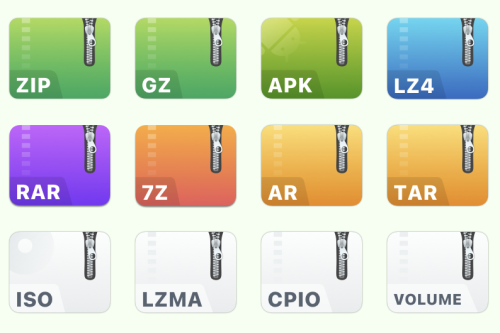
The app supports a wide range of compression formats (including the most popular ones Zip and 7Z), even more extraction formats (ZIP, RAR, TAR, and others), and can even manage ISO format for CD/DVD disc image archives, enabling users to quickly access this archived content without the need for cumbersome CD/DVD virtual drive apps.
However, users should be aware that this app supports much more extraction than compression formats, limiting its usefulness for users who want total control over their file management workflow.
Key Features
Compress files in popular archive formats such as 7Z, ZIP, TAR, GZIP, and others.
Extract files from 10+ popular compresses archive formats.
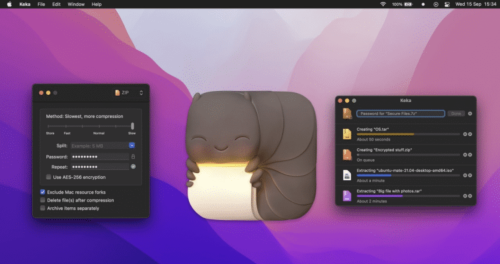
Full support for encryption using AES-256 standard.
A large array of advanced tools, including support for file splitting, compression strengths, separate item compression, and more.
Simple drag-and-drop interface for ease of use.
Full support for Terminal command access.
Installation and Setup
To install it, users simply must download the latest version of the installer from the official website, or the secure FileHorse servers. The developers actively support only the modern version of the app that receives regular updates on mac OS 10.5 or newer.
The legacy version of the app (for Mac OS X 10.4 and older) can be found on the official website.
Once installed, Mac users can also make the Keka app as their default extraction app, but this can only be achieved by downloading and installing a separate helper app called “KekaDefaultApp” from the official website.
Simply start the app and follow a few simple on-screen instructions to finish the procedure of elevating Keka to the position of primary compression file manager.