



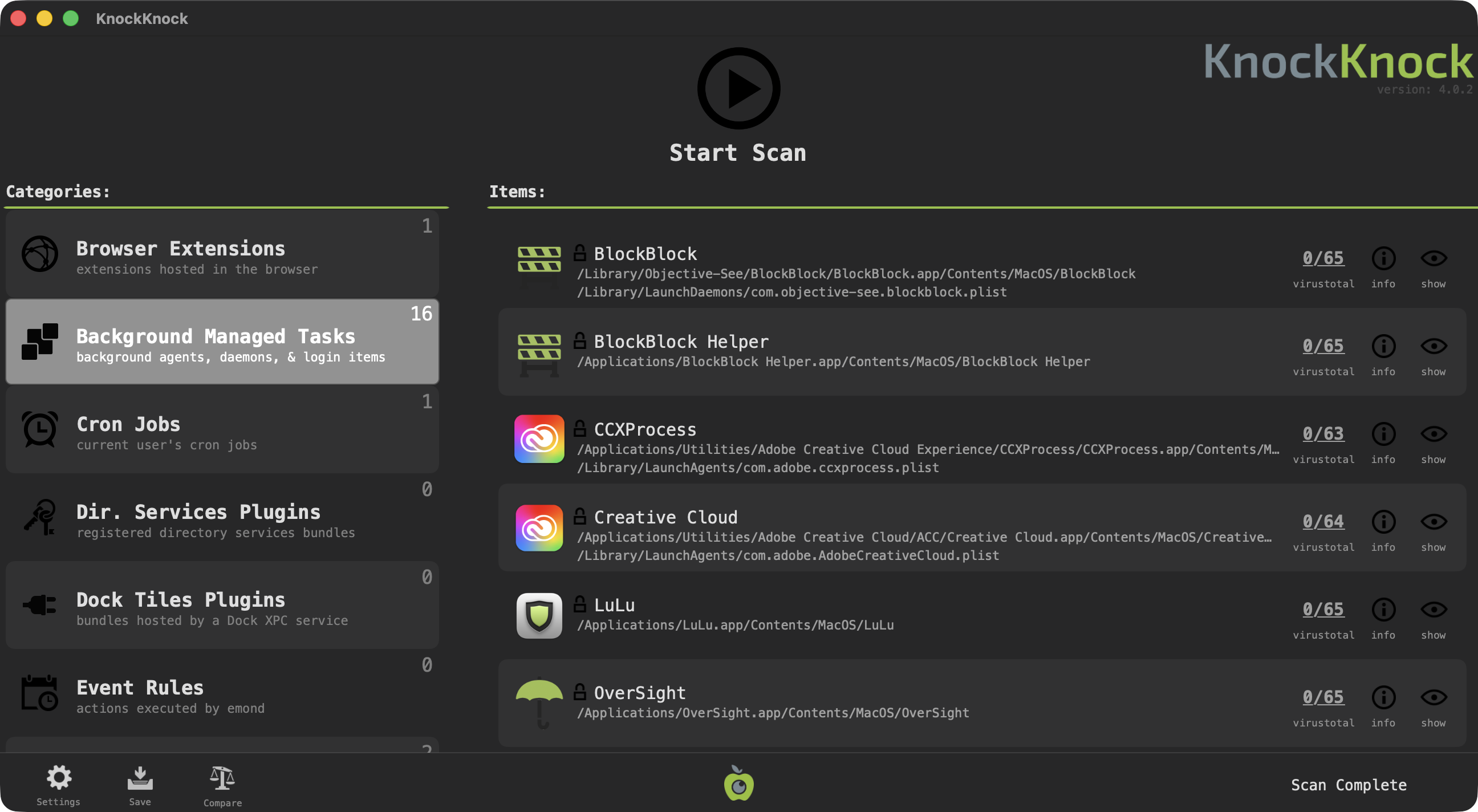
Who's there?", See what's persistently installed on your Mac! Malware often installs itself persistently, to ensure it is automatically (re)executed each time a computer is restarted. KnockKnock uncovers persistently installed software in order to generically reveal such malware.
Launching KnockKnock
To use KnockKnock, first download the zip archive containing the application. Depending on your browser, you may need to manually unzip the application by double-clicking on the zipped archive.
There is no need to install anything, and KnockKnock can be run from anywhere. (This also means there is nothing to uninstall, simple delete the application).
To run the application and begin a scan, simply double-click KnockKnock.app.
The first time you run KnockKnock, it may prompt you to grant it Full Disk Access (FDA), so it can scan your entire computer: Though the exact steps vary by macOS version, granting an app Full Disk Access is always done via System Settings. Simply search for Full Disk Access, scroll until you see KnockKnock and toggle it on. If it doesn’t appear, click the + button and add it manually by browsing to its location on disk.
Next, KnockKnock will show an initial configuration screen that lets you choose how it should run. All of these settings can be changed later in the app’s settings. Following this, you'll be able to provide a VirusTotal API key, if you want KnockKnock check for known malware: Want a free personal VT API key? See: "Please give me an API key".

You may only provide a review once you have downloaded the file.
There are no reviews to display.