



FileZilla for Mac is a popular and feature-rich free FTP client that offers users of all technical levels access to a wide range of features and tools for managing and transferring files over the local networks and internet via the popular FTP transmission protocol and its numerous variations.
This software is available for Mac computers as a native app and is designed to enhance the workflow of home users, students, developers, and anyone else who needs to transfer files securely and efficiently.
Today, this app is primarily used for uploading, downloading, and managing files on remote internet servers, but it can also be easily used for FTP connection between any supported modern devices inside the local network.
It fully supports various file transfer protocols such as FTP, SFTP, and FTPS, ensuring secure connection, reliable file transfers, and an easy way to manage a large number of files and directories, with no limits being placed on file size or transfer speeds.
The software also offers advanced features like synchronized directory browsing, directory comparison, remote administration, full IPv6 support, remote search and file editing, extensive local logging, and drag & drop support, making it an indispensable tool for managing files across different platforms.
In addition to Mac, this app can be used on Windows and Linux computers, making it one of the most versatile free FTP clients available on the market.
Main Features
Comprehensive FTP Client – Complete supports FTP, SFTP, and FTPS protocols for secure file transfers.
IPv6 Support – Fully compatible with IPv6, ensuring future-proof connectivity.
Synchronized Directory Browsing – Empowers users to simplify directory navigation when managing multiple devices.
Directory Comparison – Easily compare the contents of local and remote directories, highlighting differences in file size and modification time.
Remote Administration – Manage system files, directories, and services remotely.
Permissions System – Manage remote security access with user and group authentication.
Large File Support – Reliably transfers larger than 4GB with no speed limits.
Custom Speed Limits – Set custom speed limits for file transfers to manage real-time bandwidth usage.
Installation and Setup
To install this app on a Mac, users can download the Intel or ARM installer version from the official website or secure FileHorse servers and follow a few simple on-screen installation prompts.
The entire installation process is straightforward and requires minimal technical expertise, enabling even complete novices to get this app up and running in a mere minute.
What`s New in latest version 2026
Improved FTP, FTPS, and SFTP connection stability.
Enhanced transfer speed optimization for large files.
Updated TLS encryption handling for stronger security.
Improved site manager with clearer connection profiles.
Better handling of long file paths and large directories.
Enhanced resume support for interrupted transfers.
Improved compatibility with modern server configurations.
Refined user interface responsiveness on Windows and macOS.
Updated language files and localization support.
Bug fixes and overall stability improvements.
How to Use
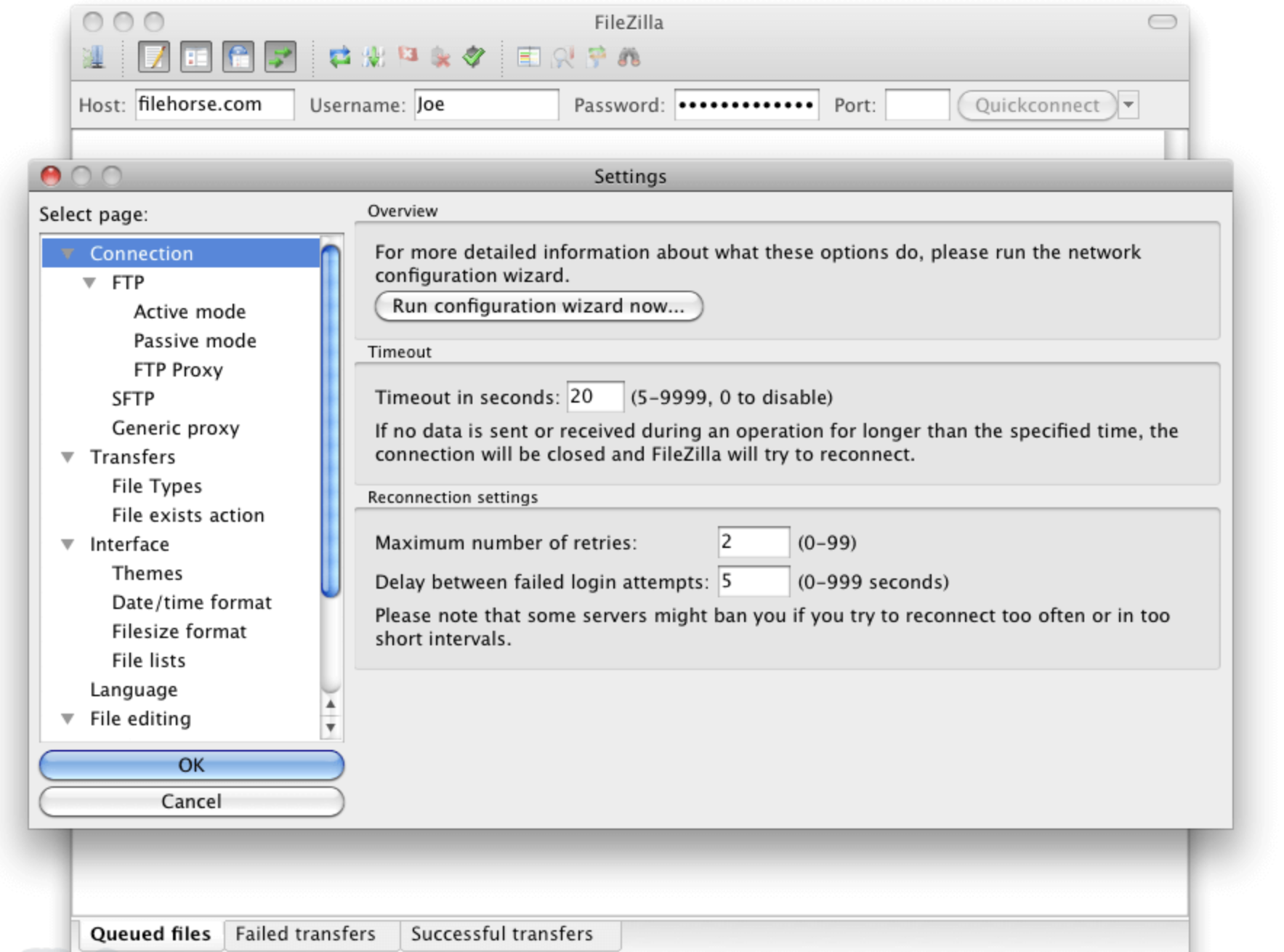
Once inside the app, users can configure this powerful FTP client by specifying a remote IP address, and remote client login details, and connecting to their FTP account on the server.
Connections can be made either with the Quick Connect tool or the Site Manager feature that allows users to set up their most often-used connection parameters.
Once connected, users can navigate through both local and remote directories, upload and download files, and manage permissions using the software's intuitive interface.
User Interface
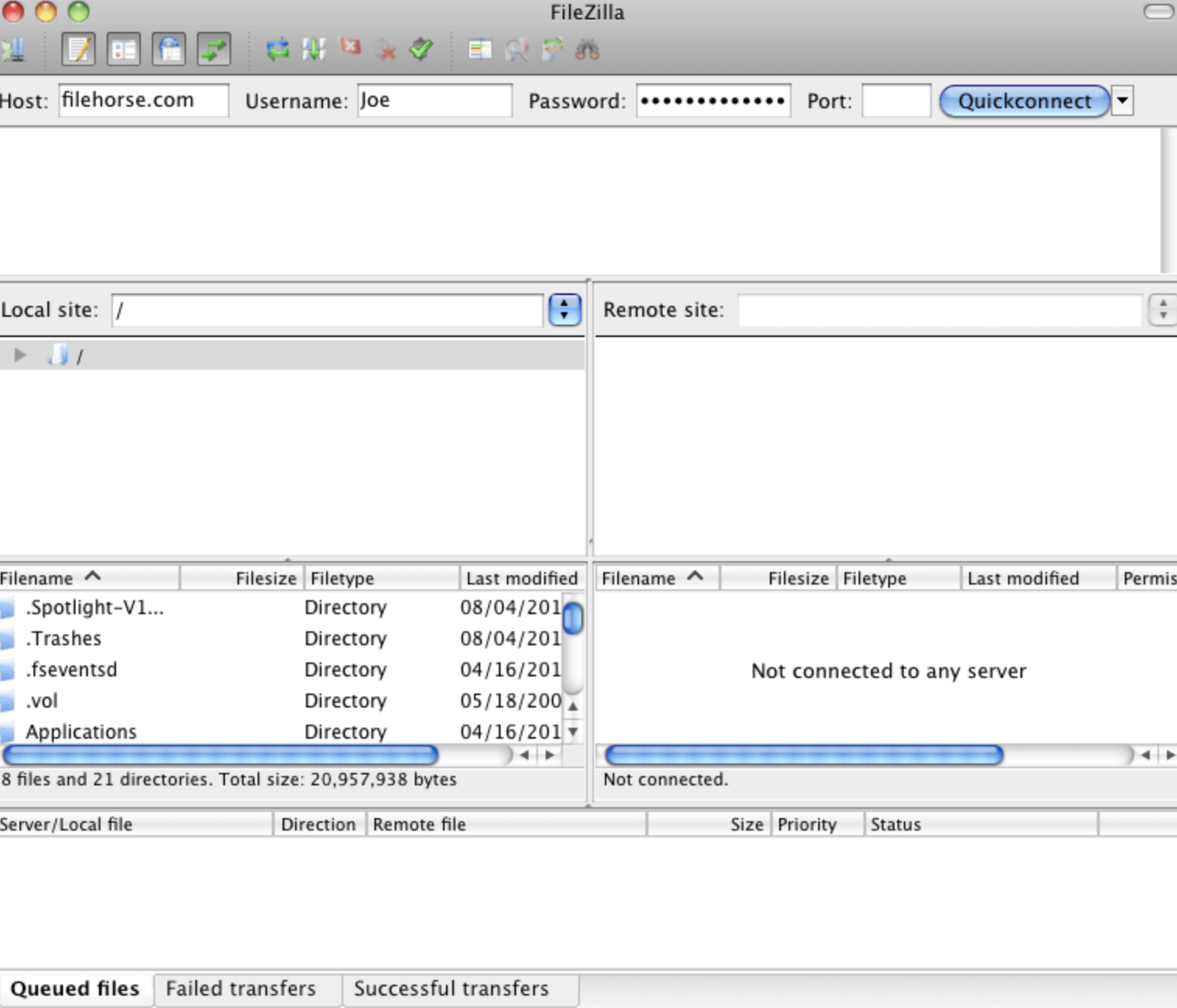
The user interface of this app is designed to be user-friendly and intuitive, promoting four main on-screen modules. The top of the app is home for connection status listing where users can access all their currently active connection data or error codes.
Below are two full sets of file management modules, and on the bottom is a transfer listing module that showcases what files are currently in status of transfer (with three tabs for Queued, Failed, and Successful transfers).
The app also hosts a wide variety of other important tools, such as directory bookmarks, speed limiter, search tool, directory comparison tool, and many others.

There are no reviews to display.