



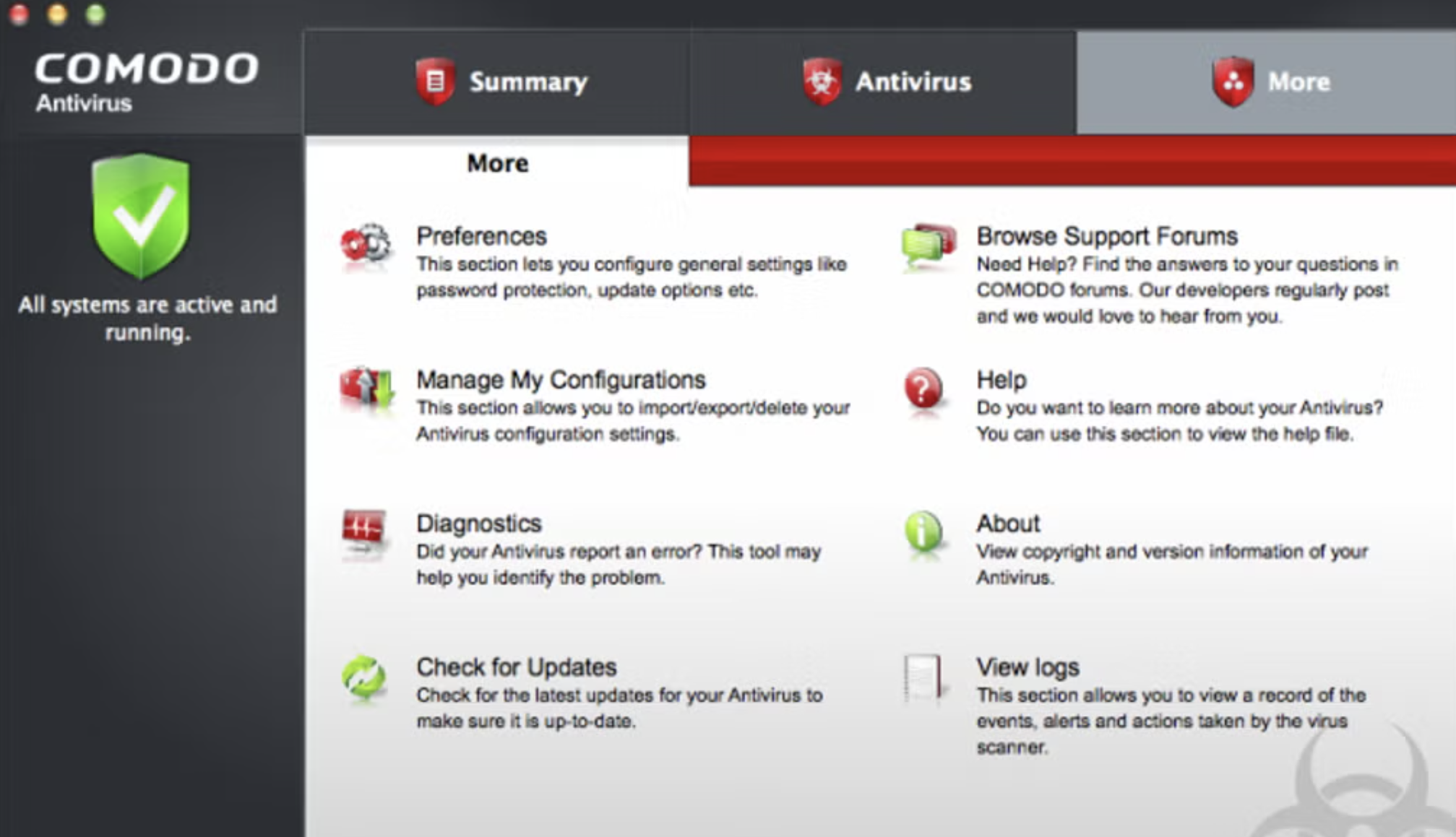
Comodo is a reliable firm that has been providing security software and firewalls for some time now for Windows based machines, and the offering for the Mac arena is a pretty good solution as well.
Comodo Antivirus for Mac provides quality virus protection for your Mac computer. It features an on-demand scanner, 'always on' real-time protection and a continuously updated database of known viruses and threats.
Key Features include:
Automatic updates for the most up-to-date virus protection.
Drag and drop any object onto the dock icon for instant virus analysis.
Easy to use interface lets you install and forget: no annoying pop-ups or false alarms.
Instant One-Click scanning.
Simple slider to change your security level.
User-friendly interface.
Built in scheduler.
On-access scanning
The user interface of Comodo Antivirus for Mac is crisp and fairly pleasing on the eyes. It allows you to alter the settings as per your needs and requirements. All the usual features such as automatic updates, scan on demand, quarantine etc, are all available, just the same as they are on the Windows counterpart.
Overall, Comodo Antivirus for Mac is a good, proactive solution for Mac computers. It provides a membrane of protection against viruses, worms and Trojan horses for Apple’s flagship operating system.

You may only provide a review once you have downloaded the file.
There are no reviews to display.