



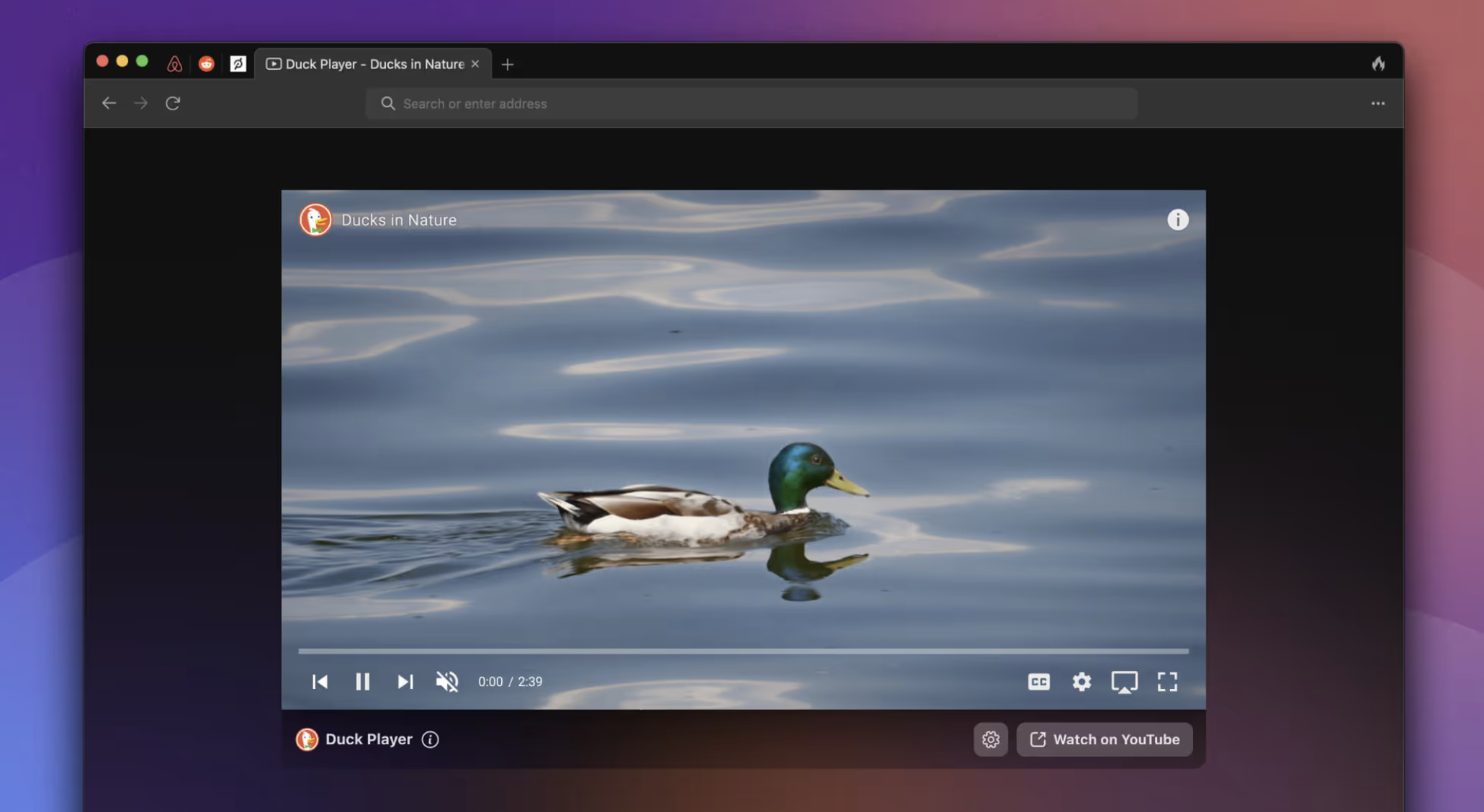
Best known for its search engine, DuckDuckGo has also created extensions, mobile apps, and now a desktop browser for macOS. As usually, the focus is on protecting the user’s privacy, but it also incorporates a bunch of innovative features that make browsing easier and more secure.
DuckDuckGo is based on WebKit, ensuring great macOS integration and web compatibility. It’s intended to be lightweight and secure, freeing up valuable resources while also limiting tracking on the web. The app is still in Beta, with a lot of features yet to come, but it is already quite impressive.
Privacy above all
Similar to the famous search engine, this browser was designed from the ground up to prevent you from being tracked across the web. It blocks trackers before they even load, ensuring that no information can be gathered if they were simply restricted. This serves to prevent many popular tracking methods that many other browsers have problems with.
Aside from that, you have Global Privacy Control, automatic removal of tracking parameters from URLs, Google AMP protection, and CNAME cloaking protection. Smarter Encryption can ensure you visit the secure version of a website if you try to visit an HTTP link.
Blocking trackers will greatly reduce the number of ads you see online, reduce load times, and limit resource usage. A lot of white spaces are left behind as a result of ads being blocked, but the team is working to get rid of these too.
Duck Player — private YouTube player
Google is known for its bad privacy practices, but YouTube is difficult to avoid. If you want to watch something without being tracked, the browser can use its built-in player instead, which will get around ad personalization and get rid of most ads as a result.
This is probably the best way to maintain your privacy on YouTube without actually leaving the website, and your views will also be counted.
Let DuckDuckGo handle cookie consent prompts
While better than not having them at all, cookie pop-ups are incredibly annoying. At least one or two clicks are normally required to choose the most private option, and that’s a lot of time wasted when visiting a new website.
This browser is able to manage cookie prompts automatically, selecting the best option for you. Most popular sites are supported, but we still ran into quite a few that weren’t, so there’s more work to be done.
Fire button for quickly clearing browsing data
Deleting browsing data takes more than a couple of clicks in most browsers, and it’s something many users do quite regularly. In DuckDuckGo, it only takes two clicks using a convenient button in the top-right corner. This is a very useful feature ported over from the company’s mobile browser.
Of course, some cookies are necessary for signing in to a website, and you wouldn’t necessarily want to remove them. Thankfully, you can “Fireproof” them when signing in, which will prevent these cookies from being deleted when clearing browsing data.
Very promising browser, and not just for privacy nerds
While you may be tempted to ignore DuckDuckGo if privacy isn’t too much of a concern, you really shouldn’t. It includes features that can make browsing easier for any user, with the added benefit of preventing tracking in the process.
You can think of it as an upgraded Safari. The same minimalistic design and intuitive approach, but with a bunch of extra features that make your life easier and work behind the scenes to keep you anonymous on the web.
Of course, DuckDuckGo is still in Beta, so it’s not quite complete yet. But if you’re willing to overlook some missing features, it definitely deserves a chance.

You may only provide a review once you have downloaded the file.
There are no reviews to display.