


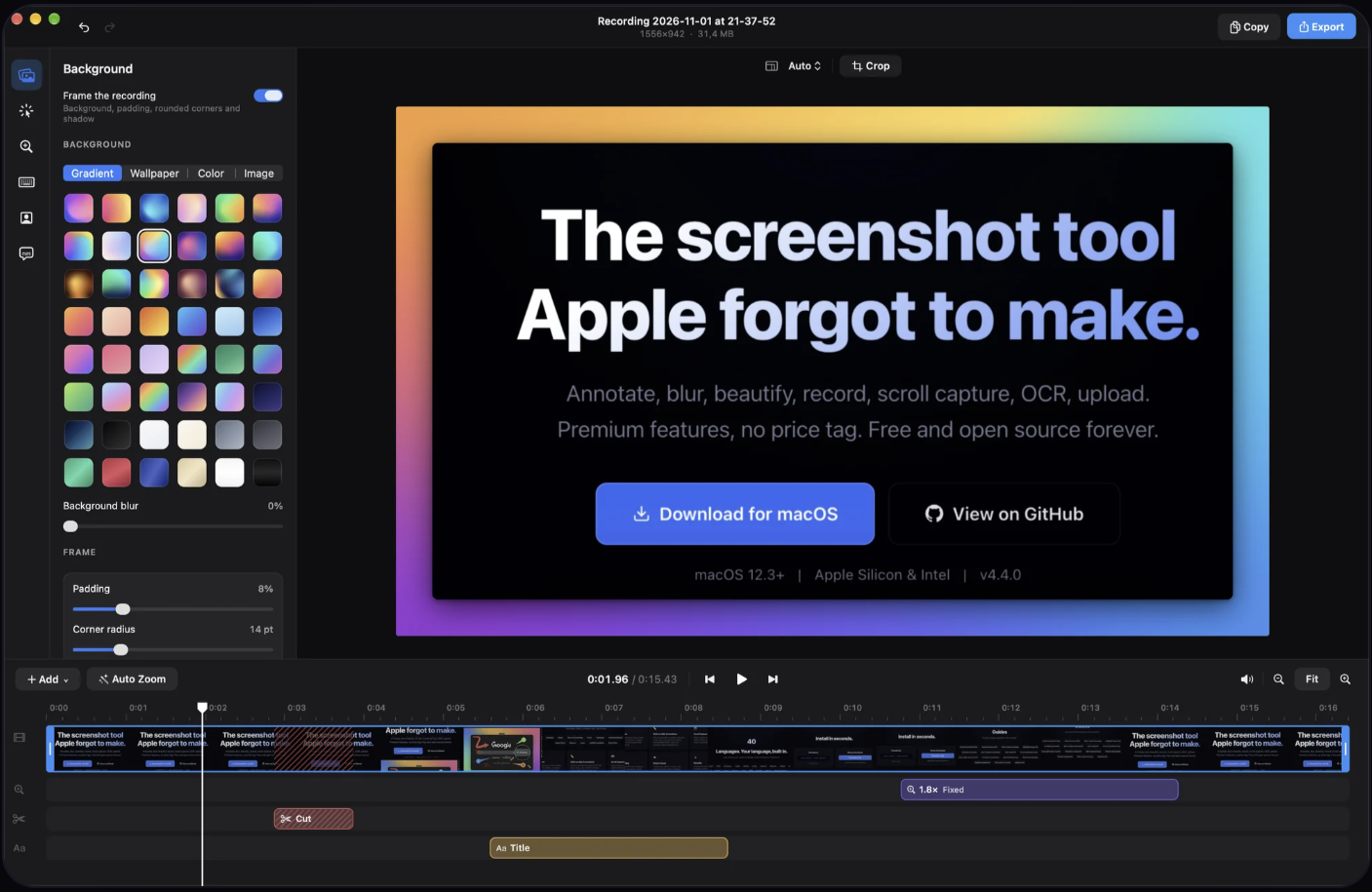
Annotate, blur, beautify, record, scroll capture, OCR, upload. Premium features, no price tag. Free and open source forever. Global hotkey freezes your screen. Select any region, snap to windows, or capture full screen. Multi-monitor support with cross-screen stitching. Click any annotation to select it, then edit stroke, style, color, and fill in real time. Full undo/redo. Rotate, resize, and reposition without switching tools. Select a region and scroll. macshot stitches it into one tall image with Apple Vision. Live preview updates as you scroll.
Record any area as MP4 (up to 120fps) or GIF. System audio, microphone, mouse highlights. Built-in trim editor. Pixelate, blur, solid fill, or erase. Auto-redact PII (emails, phones, API keys), detect faces and people. Erase mode intelligently matches surrounding colors. 30 gradient backgrounds including mesh gradients. macOS window frame with traffic lights, shadow, adjustable padding and corner radius.
Extract text with Apple Vision. Auto-detects all languages. Copy to clipboard, translate to 30+ languages, or search with Google AI. One-click upload to Google Drive, imgbb, or any S3-compatible service (Cloudflare R2, AWS, MinIO). Link copied instantly. Pure Swift + AppKit. No Electron, no web views, no bloat. Lives quietly in your menu bar.

You may only provide a review once you have downloaded the file.
There are no reviews to display.