Video & Media
10 files
-
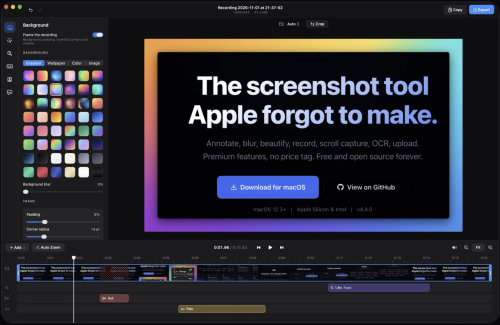
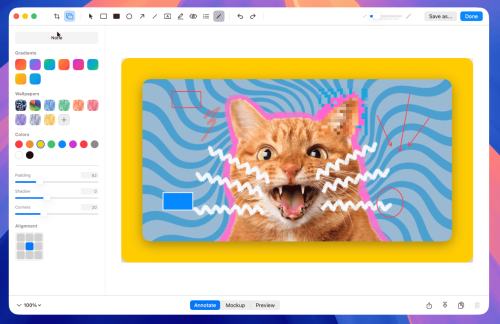
Annotate, blur, beautify, record, scroll capture, OCR, upload. Premium features, no price tag. Free and open source forever. Global hotkey freezes your screen. Select any region, snap to windows, or capture full screen. Multi-monitor support with cross-screen stitching. Click any annotation to select it, then edit stroke, style, color, and fill in real time. Full undo/redo. Rotate, resize, and reposition without switching tools. Select a region and scroll. macshot stitches it into one tall image with Apple Vision. Live preview updates as you scroll.
Record any area as MP4 (up to 120fps) or GIF. System audio, microphone, mouse highlights. Built-in trim editor. Pixelate, blur, solid fill, or erase. Auto-redact PII (emails, phones, API keys), detect faces and people. Erase mode intelligently matches surrounding colors. 30 gradient backgrounds including mesh gradients. macOS window frame with traffic lights, shadow, adjustable padding and corner radius.
Extract text with Apple Vision. Auto-detects all languages. Copy to clipboard, translate to 30+ languages, or search with Google AI. One-click upload to Google Drive, imgbb, or any S3-compatible service (Cloudflare R2, AWS, MinIO). Link copied instantly. Pure Swift + AppKit. No Electron, no web views, no bloat. Lives quietly in your menu bar.
- 3 Downloads
-
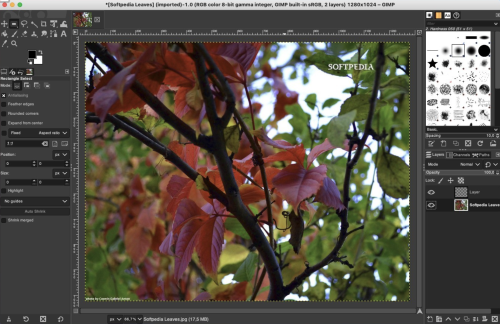
Gimp is a fully-featured and versatile graphics manipulation packages that enables you to adjust and retouch photos and images with ease.
Comprehensive image editing application for novice and experience users
The first thing you’ll notice about Gimp, is that it comes with a customizable interface that can be changed and adjusted according to the task you need to perform. Hence, you can personalize the view and change the behavior accordingly.
Gimp allows you to change anything from widget theme, widget spacings and icon sizes to custom tool sets in the toolbox. The main window is composed of multiple modules called docks that you can stack up into tabs or keep them in their own window. You can even hide them and summon them with a key press.
Numerous out-of-the-box editing tools and photo enhancement functions
What is more, Gimp features a full-screen mode that enables you to preview your work and edit using your entire screen and with the help of the provided tools and functions. Consequently, you can fix and repair numerous digital photo imperfections, color aberrations and distortions.
Hence, you can fix perspective distortion generated by lens tilt by using the corrective mode from the transform tools. For example, the lens’ barrel distortion and vignetting are annoying issues that can be easily adjusted thanks to the powerful filter.
Take advantage of the support for the pressure and tilt sensitive tablets and let your creativity free
At the same time, the built-in channel mixer offers you the power and flexibility you need to enhance your Black and White photos and focus on specific areas. Gimp is also the perfect choice for professional photographers.
The advanced inbuilt photo retouching tools can help you remove unneeded details, touch up minor details and heal damaged portions of a picture. On top of that, Gimp is compatible with most common image formats such as JPEG, JFIF, TIFF, PNG and more.
All of the above, combined with the built-in support for a wide variety of input devices, make the Gimp app a must have for amateur and professional photographers.
- 4 Downloads
-
Promising, extensible screen capture utility with a focus on easily uploading and sharing images or videos, using Imgur or custom uploaders
macOS has a very capable and easy-to-use screen capture utility built right in, but third-party utilities can bring additional features, such as extra personalization, or instant media uploads.
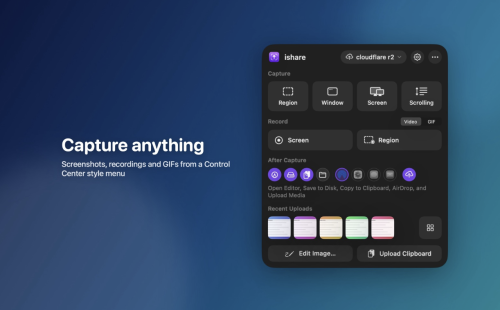
ishare is an open-source app that seems to be focused on making it easier to capture, upload, and share images or videos. The project is still in its infancy, with some features not fully implemented, but it already offers instant Imgur uploads of captured images.
Instantly capture and upload screenshots
The app only runs in the menu bar, and you can open the menu to check the default hotkeys and enable post media tasks. The settings window includes additional preferences, allowing you to change keybinds, the output location, and more.
Once you’ve captured a screenshot, the app can automatically upload it to Imgur and copy the URL to the clipboard. The process is seamless and great for quickly sharing something on your screen without any fuss.
Good feature set, with possible improvements
Looking past the upload functionality, we see a few missing features. While you can capture a region, window, or screen, there is no option to preserve or fine-tune the capture area, something you can do with the built-in utility.
The screen recording functionality allows you to capture any window or application, but you cannot record a specific area of the screen.
Use custom uploaders and plugins
One of the main advantages of ishare will be the ability to use custom uploaders and plugins for media processing. Uploaders can already be set up, with plugin specifications to be detailed in a later release.
Overall, ishare shows promise, but there is still work to be done. For now, if you just need a simple way to capture, upload, and share screenshots or video, it should work just fine.
- 3 Downloads
-
Give your demos the spotlight they deserve
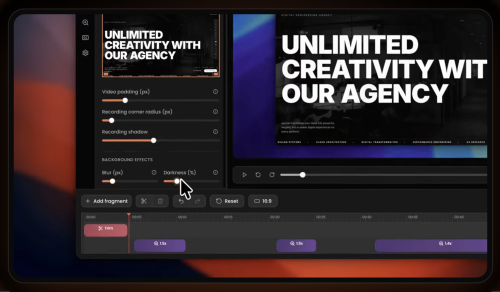
Capptivo is a Screen Studio and Cursorful alternative. Create stunning screen recordings in seconds, not hours. With smart follow-cursor zoom and automatic zoom fragments, your demos practically make themselves.
Use a pen, highlighter, and simple shapes to explain a step, walk through a flow, or show what to look at. What you draw is saved in the recording, on top of the screen.
Before you open Capptivo on Mac
macOS builds are unsigned. If Gatekeeper blocks the app or you see “Application is damaged”, right-click → Open, or run this command in Terminal:
xattr -rd com.apple.quarantine /Applications/Capptivo.app- 5 Downloads
-
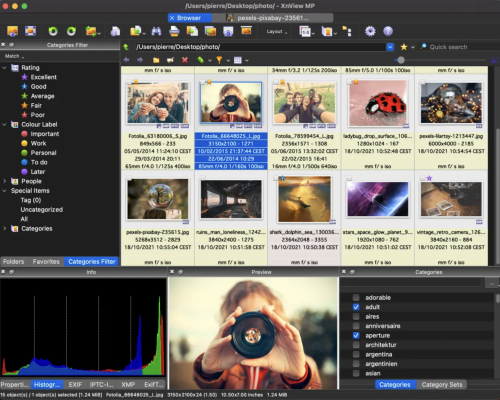
XnView MP/Classic is a free Image Viewer to easily open and edit your photo file. The Image Viewer supports all major image formats (JPEG, TIFF, PNG, GIF, WEBP, JPEG-XL, AVIF, HEIC, PSD, JPEG2000, OpenEXR, camera RAW, PDF, DNG, CR2). As Image Viewer you have features like color adjusting, image resizer, cropping, screen capture, metadata editing (IPTC, XMP) and much more. With its easy-to-use explorer-like interface, XnView MP allows you to quickly view your images and photos, but also to make image management. You have features like batch rename, batch converter, duplicate image finder, image compare, but you can also create contact sheets, slideshow.
In addition to its viewing capabilities, XnViewMP includes tools for organizing and managing images efficiently. Users can create catalogs, apply tags, and even perform basic editing tasks. The program is free to use, making it an accessible option for anyone looking to enhance their image handling experience on Mac. Whether you need a simple viewer or a comprehensive image management solution, XnViewMP provides a robust set of features to meet your needs.
- 27 Downloads
-
All the tools you need for
professional compositing
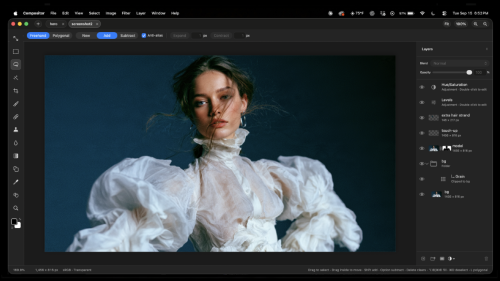
Adobe Photoshop costs too much and tools like GIMP don’t feel familiar enough for me to stay in flow. That’s why I built Compositor.
The goal was to create a full-featured image editor that is completely free and open source. I used to use Photoshop for compositing and post-processing, so Compositor is built around that workflow - with the tools needed to create a pixel-perfect final image.
Because it’s open source, you can download the Xcode project and add, remove, or modify any feature to fit your needs.
Layers
Layers and folders, with opacity and Photoshop's full set of blend modes in its order — a folder's opacity dims everything inside it
Layer masks: paint, fill, invert, blur and feather them anywhere on the canvas, past the layer's own pixels; link or unlink them to transform a mask on its own
Clipping masks and folder masks
Adjustment layers: Hue/Saturation, Levels, Curves, Exposure, Gradient Map, Grain, Black & White, Color Balance, Invert, Gaussian Blur, Motion Blur and Noise
Layer effects: Stroke, Drop Shadow, Color Overlay, Inner Shadow, Outer Glow and Inner Glow, rendered on the GPU and editable at any time
Merge Down, Merge Layers and Merge Group (⌘E)
Duplicate, rename inline, reorder and nest by drag and drop; Option-drag to duplicate; a right-click menu in the Layers panel
Copy and paste whole layers and folders (⌘C/⌘V with no selection), within a project or between projects, or drag them between projects
Transform
Non-destructive move, scale, rotate and flip — images keep their full resolution however small you make them
Free distort (⌘-drag a handle), with Shift to lock to an axis
Transform several layers, or a whole folder, together
Snapping to canvas and layer edges and centers, with guides
Exact values for position, size, scale and angle, stepped with the arrow keys
Flip Layer and Flip Canvas, horizontal and vertical
Selections
Rectangle and Ellipse Marquee, Freehand and Polygonal Lasso, and the Magic tool — Wand selects by color, Object traces whatever you click (Tab switches)
Select Subject, and Expand, Contract and Feather on any selection
Add to and subtract from selections, move the outline, or move and duplicate the pixels inside
Load a layer's pixels or a mask as a selection
Content-Aware Fill, which can also extend an image past its edges
Painting and retouching
Brush with size, hardness, opacity and smoothing, in Paint or Erase mode (B and E), and Shift for straight lines
Spot Healing Brush (content-aware)
Clone Stamp, aligned or not, sampling one layer or all of them
Blur tool, on pixels or masks
Gradient tool and Shape tool (rectangles, rounded rectangles, ellipses and lines), which stay editable rather than being rasterized
Type tool (T): inline multiline editing in draggable, resizable paragraph boxes; font, size, color, alignment and spacing in the tool header; transform text and use it as a clipping mask
Eyedropper and a full color picker
Adjustments and filters
Camera Raw filter: light, color, curves, color mixer, color grading, detail, optics and geometry, in a panel beside the canvas
Levels (with Auto), Curves, Hue/Saturation, Exposure, Gradient Map, Grain, Black & White, Color Balance and Invert
Gaussian Blur and Motion Blur that spread past a layer's edges
Add Noise, Vignette, Bloom / Glow, Tonal Contrast, Lens Correction and Remove Background
Live previews, limited to the selection when there is one
Canvas and files
Multiple projects in tabs
Rulers (⌘R), guides dragged from them, a layout grid with adjustable spacing and subdivisions, and Snap To for guides, grid, layers and document bounds
Crop with snapping, ratios including 3:4 and 9:16, and Option for symmetric cropping; with a selection, the crop starts at it
Canvas Size, Image Size and Trim
Sharp high-quality downsampling when zoomed out, and a pixel grid when zoomed in
Import JPEG, PNG, HEIC, TIFF, SVG, camera RAW (with a develop step first) and Photoshop PSD and PSB (8-bit RGB; not CMYK). Photoshop folders, masks, blend modes, fill rectangles/ellipses, and simple horizontal text stay editable; other vectors and vertical text become pixels. A conversion report is shown before anything is applied.
Large documents: the memory budget scales with your Mac, and a Photoshop file too big to open has its layers cropped to the canvas instead
Export JPEG with a live preview (⇧⌥⌘S); Copy Merged
Keep working while a project saves
Photoshop-style keyboard shortcuts throughout, remappable in Edit > Keyboard Shortcuts
Drag a number's label to scrub its value, as in Photoshop
Automatic updates, signed and notarized
- 27 Downloads
-
Pixel-perfect precision. Select any part of your screen with intuitive guides and keyboard modifiers. Infinite screenshots. Capture entire webpages or long documents in one continuous motion. Annotate with speed. Add arrows, text, and highlights. Beautiful backgrounds in one click. Smooth capture. Record high-quality video with system audio and microphone support. Always at hand. Manage your recent captures instantly from the menu bar.
- 8 Downloads
-
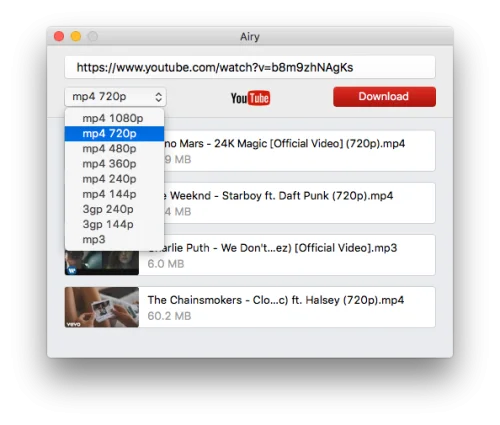
4k Video Downloader is a cost-free video downloader that is trusted by millions of users worldwide. It supports tons of popular video sites that enable you to save video and audio from YouTube, Vimeo, TikTok, SoundCloud, Bilibili, Flickr, Facebook, Instagram, DailyMotion, Naver TV, Likee, and Tumblr.
Not to mention it allows you to download streams from Twitch and YouTube Gaming as well. This is a handy program to save data and watch your favorite content on the go. Enjoy offline streaming in the highest video resolution you want your viewing experience to have.
Feature-packed video downloader
4k Video Downloader empowers you to download special and private video content. For instance, your personal YouTube playlist can efficiently be accessed whenever and wherever you wish without being required to sign in. Stereoscopic 3D videos can also be obtained in MP4, MKV, FLV, 3GP, and other formats. Moreover, 360° videos can also be saved for a virtual reality experience.
As its title suggests, the main function of this bundle is to give your clips a 4K quality offline streaming resolution. Aside from that, it permits you to download any video in other high-definition values such as 1080p, 720p, and even 8K. All of your downloaded videos and audios will be compatible on various devices including HD TV, iPad, iPhone, and Samsung.
What's more amusing is it offers a built-in proxy setup that can authorize you to bypass restrictions set by your internet service provider. You can establish a connection through the in-app proxy in order to access and download from YouTube and other sites. Additionally, it is equipped with a smart mode feature wherein you can implement preferable settings to all further downloads.
Watch favorites anytime, anywhere
4k Video Downloader is an excellent download manager platform option to get your cherished content and watch it in quality offline. This will come in handy especially if you are running low on data or will go far away from a stable WiFi connection. With this powerful companion, no ads can ever interrupt your movie marathon time or binge-watching experience.
- 8 Downloads
-
Free cross-platform multimedia player VLC Media Player is a free multimedia player that lets you play music and video content. You can download this handy program for Mac, Microsoft Windows PC, iOS, and Android devices. While the user interface is straightforward, the platform has dynamic benefits that let you customize your viewing experience.
As an open-source cross-platform multimedia player, it plays most multimedia files as well as various streaming protocols. Safe, powerful, and completely free, the app can play a range of media, including video and music files, in multiple formats directly on your device of choice.
What is VLC Media Player used for?
VLC Media Player can play video or music files in just about any format from MPEG to FLV, MKV, and RMBV files. VLC plays most codecs with no codec packs required, including MPEG-2, MPEG-4/Xvid, H.264, MKV, WebM, WMV, and MP3. It can also play audio CDs, DVDs, and BluRay discs, ignoring region codes.
Because the software plays almost anything, VLC is a great alternative to iTunes, RealPlayer, and Quicktime. Users can also use VLC to convert files and, in addition to all the formats and physical media it will play, many streaming protocols are supported.
Simple interface and easy basic functionality
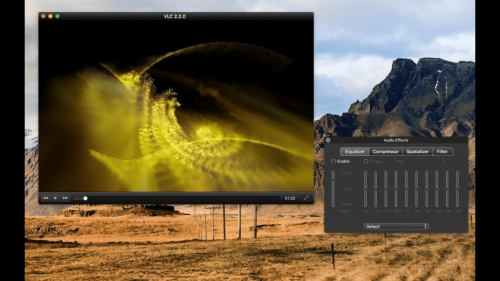
The VLC interface for Mac is lightweight, fast, and simple with a single window for everything. Visually, the player is not very exciting, although a selection of audio visualizations — graphic shapes and signs that respond to the audio being played — can be used to add color and interest to the display. For those who prefer a more visually interesting interface, KMPlayer is fully customizable and allows users to open multiple windows for controls, playlists, or equalizers.
At a very basic level, VLC is an easy program to use for simple viewing of videos and listening to audio files. During software installation, a user can set VLC as the default media player, meaning that whenever they click on an audio or video file it will automatically open in VLC.
In playback mode, the play, pause, stop, full-screen, and volume controls are easily accessible on-screen. There is also a timeline that shows the full length of the video with a slider to move through the video. It’s simple to watch and pause videos and control their volume using your mouse.
Furthermore, the app also has great hotkey support and, if you learn the shortcuts, it can be controlled without touching your mouse. Functions such as changing the video’s size, jumping to a specific time point in the video, and taking a quick screengrab are available using the hotkeys.
Enriched playback experience
For music, VLC plays more or less any audio file and features an equalizer and playlist creation. While it isn’t as intuitive as iTunes as a media manager, VLC is much more flexible in terms of file formats. VLC can also check online for album art and metadata to enrich the playback experience, such as providing track information when playing audio CDs.
Lots of advanced features
VLC media player is not just for simple video and audio playback, however. More ambitious users will want to take advantage of the host of advanced features the player offers.
The player can be used to record a user’s desktop or webcam via its built-in screen recorder. Users can select the frame rate and codec for their video as well as the destination folder for saving. This feature is useful for creating on-screen tutorials and screencasts or video presentations.
Converting video or audio files to a different format is one of VLC’s most handy features. Aside from being able to select a destination on their computer in which to save the newly converted file, users can also stream the file using a streaming method of their choice.
VLC media player makes it easy to add subtitles to video files too — simply add the SRT file to the folder where the video is kept and it will automatically play with subtitles. Also useful is the fact that users can use the media player to preview files that are downloading since it plays incomplete parts of video files.
Despite its basic-level simplicity, navigating VLC’s advanced workflows and functionality isn’t particularly user-friendly or intuitive. To access advanced features and discover VLC’s full potential, users may have to rely on online forums and tutorials. Some support from the developer is available via the Help menu within the app although online documentation is limited.
Is VLC download free and is it free to use?
VLC is free to download and install. Only a free download is available, although you can donate to the developers in case you want to support the development of the project by VideoLAN. The multimedia program delivers the entire suite of features for free.
Is VLC safe?
The VLC player is an open-source project, which enables you to look into the source code to make sure that the program is safe for you. The open-source nature allows you to modify the code to change the platform to your personal preferences.
- 9 Downloads
-
The best open-source video conversion app — with support for pretty much any format, presets, advanced customization, batch processing, and automation
What began as primarily a DVD ripper has evolved into a general-purpose video editor that is widely considered to be the best choice for pretty much any conversion job. It supports a large variety of input formats and can export videos using widely-supported codecs for any device.
Handbrake is free, open-source, and available for all major desktop platforms — macOS, Windows, and Linux. You can use presets or customize conversion jobs in-depth, and the app also supports batch processing. For further automation, you can use the command-line version and run complex scripts with one command.
Can process just about anything
Handbrake integrates open-source libraries such as FFmpeg, which allow it to open almost any video file you throw at it. If you still have those lying around somewhere, and your Mac still has a drive for them, it also allows you to rip DVDs and Blu-ray discs, provided they don't use copy protection.
Modern codecs, such as H.265 and H.264, are used to export videos to commonly-used formats suitable for a wide range of devices. If you're in a hurry, or just don't feel like fiddling around with the settings, just select one of the many device presets and let the app take care of things.
Advanced customization and editing capabilities
If you want to have more control over the output, you can cycle through the tabs and tweak your settings for each source video. You can crop and rescale content, add filters, change encoder parameters, manage subtitle settings, select chapters, and more.
Before exporting your video, you can generate a short preview that will give you a better idea of what the final version will look like.
Great for batch video processing and automation
The app's GUI edition is already great for running multiple jobs in quick succession, as you can add them all to the queue, each with its own settings, and export everything in one go.
If you're after complete automation, however, the command-line edition is what you need. It allows you to run scripts that convert multiple videos with just one command, simplifying your workflow significantly if you need to run similar operations on a regular basis.
There are few situations when Handbrake isn't the best tool for the jobs. It has everything you need: extensive format support, customization options, easy-to-use presets, and batch processing capabilities. And to top it all off, it's completely free and open-source.
- 11 Downloads
Blog Entries
-
- 0 Comments
- 152 Views
-
- 0 Comments
- 118 Views
-
- 0 Comments
- 140 Views
-
- 0 Comments
- 124 Views
-
- 0 Comments
- 128 Views




Links
-
- 0 Comments
-
- 0 Comments
- 1 Total Hits
-
- 0 Comments