


All the tools you need for
professional compositing
Adobe Photoshop costs too much and tools like GIMP don’t feel familiar enough for me to stay in flow. That’s why I built Compositor.
The goal was to create a full-featured image editor that is completely free and open source. I used to use Photoshop for compositing and post-processing, so Compositor is built around that workflow - with the tools needed to create a pixel-perfect final image.
Because it’s open source, you can download the Xcode project and add, remove, or modify any feature to fit your needs.
Layers
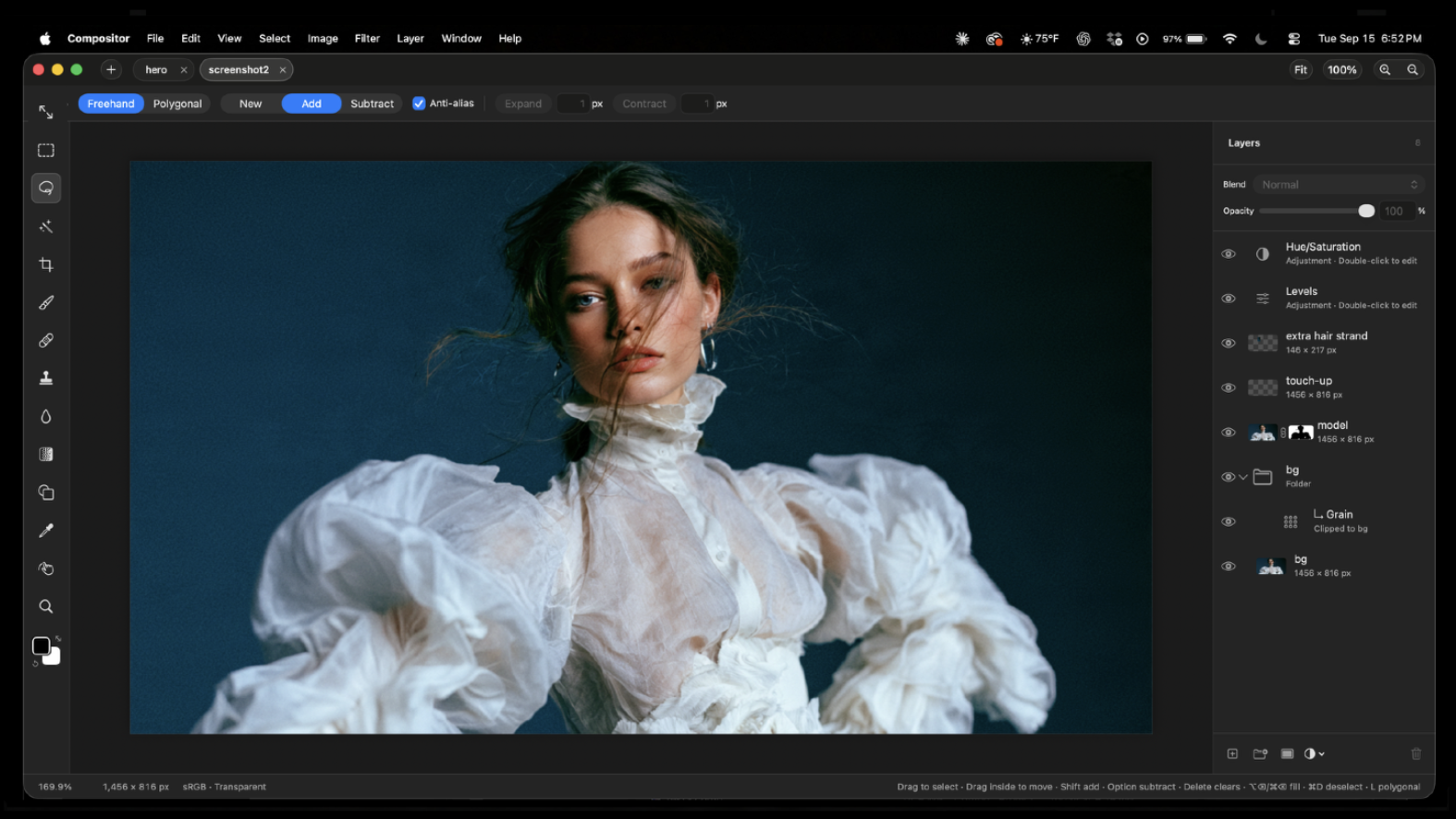
Layers and folders, with opacity and Photoshop's full set of blend modes in its order — a folder's opacity dims everything inside it
Layer masks: paint, fill, invert, blur and feather them anywhere on the canvas, past the layer's own pixels; link or unlink them to transform a mask on its own
Clipping masks and folder masks
Adjustment layers: Hue/Saturation, Levels, Curves, Exposure, Gradient Map, Grain, Black & White, Color Balance, Invert, Gaussian Blur, Motion Blur and Noise
Layer effects: Stroke, Drop Shadow, Color Overlay, Inner Shadow, Outer Glow and Inner Glow, rendered on the GPU and editable at any time
Merge Down, Merge Layers and Merge Group (⌘E)
Duplicate, rename inline, reorder and nest by drag and drop; Option-drag to duplicate; a right-click menu in the Layers panel
Copy and paste whole layers and folders (⌘C/⌘V with no selection), within a project or between projects, or drag them between projects
Transform
Non-destructive move, scale, rotate and flip — images keep their full resolution however small you make them
Free distort (⌘-drag a handle), with Shift to lock to an axis
Transform several layers, or a whole folder, together
Snapping to canvas and layer edges and centers, with guides
Exact values for position, size, scale and angle, stepped with the arrow keys
Flip Layer and Flip Canvas, horizontal and vertical
Selections
Rectangle and Ellipse Marquee, Freehand and Polygonal Lasso, and the Magic tool — Wand selects by color, Object traces whatever you click (Tab switches)
Select Subject, and Expand, Contract and Feather on any selection
Add to and subtract from selections, move the outline, or move and duplicate the pixels inside
Load a layer's pixels or a mask as a selection
Content-Aware Fill, which can also extend an image past its edges
Painting and retouching
Brush with size, hardness, opacity and smoothing, in Paint or Erase mode (B and E), and Shift for straight lines
Spot Healing Brush (content-aware)
Clone Stamp, aligned or not, sampling one layer or all of them
Blur tool, on pixels or masks
Gradient tool and Shape tool (rectangles, rounded rectangles, ellipses and lines), which stay editable rather than being rasterized
Type tool (T): inline multiline editing in draggable, resizable paragraph boxes; font, size, color, alignment and spacing in the tool header; transform text and use it as a clipping mask
Eyedropper and a full color picker
Adjustments and filters
Camera Raw filter: light, color, curves, color mixer, color grading, detail, optics and geometry, in a panel beside the canvas
Levels (with Auto), Curves, Hue/Saturation, Exposure, Gradient Map, Grain, Black & White, Color Balance and Invert
Gaussian Blur and Motion Blur that spread past a layer's edges
Add Noise, Vignette, Bloom / Glow, Tonal Contrast, Lens Correction and Remove Background
Live previews, limited to the selection when there is one
Canvas and files
Multiple projects in tabs
Rulers (⌘R), guides dragged from them, a layout grid with adjustable spacing and subdivisions, and Snap To for guides, grid, layers and document bounds
Crop with snapping, ratios including 3:4 and 9:16, and Option for symmetric cropping; with a selection, the crop starts at it
Canvas Size, Image Size and Trim
Sharp high-quality downsampling when zoomed out, and a pixel grid when zoomed in
Import JPEG, PNG, HEIC, TIFF, SVG, camera RAW (with a develop step first) and Photoshop PSD and PSB (8-bit RGB; not CMYK). Photoshop folders, masks, blend modes, fill rectangles/ellipses, and simple horizontal text stay editable; other vectors and vertical text become pixels. A conversion report is shown before anything is applied.
Large documents: the memory budget scales with your Mac, and a Photoshop file too big to open has its layers cropped to the canvas instead
Export JPEG with a live preview (⇧⌥⌘S); Copy Merged
Keep working while a project saves
Photoshop-style keyboard shortcuts throughout, remappable in Edit > Keyboard Shortcuts
Drag a number's label to scrub its value, as in Photoshop
Automatic updates, signed and notarized

You may only provide a review once you have downloaded the file.
There are no reviews to display.